





Troubleshooting Chamberlain MyQ App Connectivity Issues
Published: May 14, 2026
You’re pulling up to your home, ready to glide into the garage with a tap on your phone. But instead of the satisfying hum of the door opening, you’re greeted by a dreaded notification: “Device Offline.” Or maybe you’re stuck in a loop, endlessly trying to connect a new device to your Wi-Fi with no success.
It’s a frustrating moment that turns smart technology into a source of stress. You’re not alone—connectivity issues are the most common hurdle for smart garage door users. The good news is that most MyQ connection problems are fixable without needing to call in a pro.
This guide is designed to be your one-stop resource. We’ve synthesized the official steps from Chamberlain with real-world solutions from community forums to create a clear, step-by-step journey from confusion to connection. Let’s get your smart garage door back online.
The 5-Minute Fixes: Start Here First
Before diving into router settings, let’s start with the simplest solutions. These steps resolve a surprising number of connectivity issues and only take a few minutes.
- Check the MyQ Service Status: Is the problem on your end or theirs? Occasionally, the MyQ service itself can experience outages. Before you start unplugging things, check Chamberlain’s official service status page to see if they are reporting any system-wide problems.
- Power Cycle Everything: This is the oldest trick in the IT book for a reason—it works. Unplug your modem, your Wi-Fi router, and your MyQ hub or smart opener. Wait a full 60 seconds to allow them to completely reset. Plug them back in, starting with the modem, then the router, and finally the MyQ device. Give them a few minutes to fully boot up and reconnect.
- Restart the App: Close the MyQ app on your smartphone completely (don’t just send it to the background). Re-open it and see if the status has changed. Sometimes the app itself just needs a quick refresh.
Foundation: Understanding Your MyQ Setup
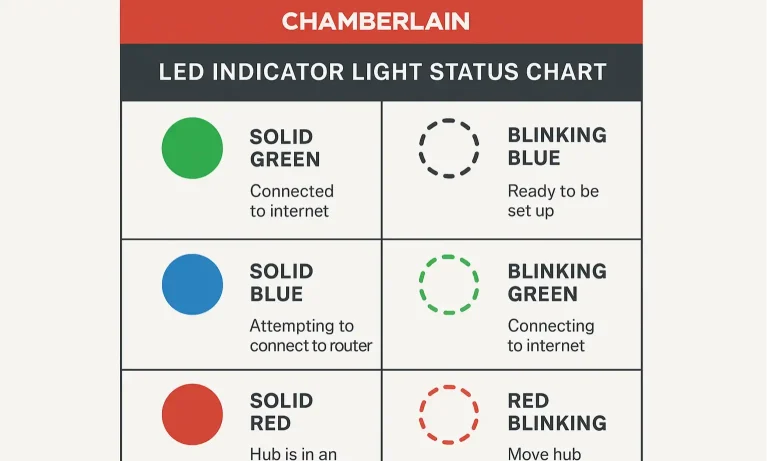
To effectively troubleshoot, it helps to know how the pieces of the puzzle fit together. Your MyQ system has three main parts: the MyQ hub or smart opener in your garage, your home’s Wi-Fi router, and the MyQ app on your phone. They work in a chain: the opener connects to your router, your router connects to the internet, and the app communicates with your opener through MyQ’s cloud servers. A break anywhere in that chain causes an “offline” error.
One of the most powerful diagnostic tools you have is the set of LED lights on your MyQ device. Instead of guessing, you can use them to pinpoint the problem.
- Solid Green: All good! Your device is connected to both your Wi-Fi router and the MyQ servers.
- Blinking Green: The device is attempting to connect to your router. If it stays this way, it indicates a weak signal or incorrect password.
- Solid Blue: The device is in Wi-Fi setup mode, waiting for you to connect it to a network.
- Blinking Blue: The device is actively trying to connect to your smartphone during the setup process.
Building: Guided Troubleshooting Scenarios
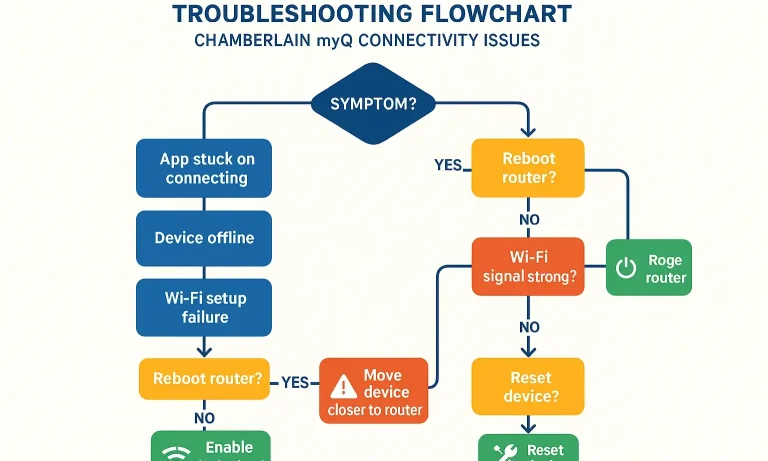
Let’s walk through the most common problems with a clear, diagnostic approach. Find the scenario that matches your issue and follow the steps.
Scenario 1: Your Opener is “Offline” in the App
This is the most frequent issue. Your opener was working fine, and now it’s not.
- Check the LED: Look at the light on your MyQ hub or opener. A solid green light means the device thinks it’s connected. If you see this but the app says offline, the issue is likely with the app or MyQ’s servers (refer to the 5-minute fixes). If the light is blinking green or off, the problem is in your garage.
- Check Wi-Fi Signal Strength: Is your router too far from the garage? Concrete and steel walls can block Wi-Fi signals. Try moving your router closer, or consider a Wi-Fi extender if the signal is weak.
- Check for Interference: Other devices can interfere with the signal. Have you recently installed a new wireless security camera, baby monitor, or even LED light bulbs near the opener? Try temporarily turning them off to see if your MyQ reconnects.
Scenario 2: MyQ Won’t Connect to Wi-Fi During Setup
You’re trying to add your device to the app, but it fails every time it tries to connect to your home network.
- Confirm Your Wi-Fi Password: It sounds simple, but a single typo is a common culprit. Carefully re-enter your password.
- Check Your Wi-Fi Band: This is a crucial step. MyQ devices only connect to a 2.4GHz Wi-Fi network. Many modern routers broadcast both 2.4GHz and 5GHz networks under the same name. Your phone might be on the 5GHz band, causing confusion during setup. You’ll need to make sure your device is connecting to the 2.4GHz band (more on this in the next section).
- Reset Network Settings on Device: Perform a factory reset on the MyQ hub or opener itself. This usually involves holding down a settings or learn button until a light flashes. This clears any old network information and lets you start fresh.
Mastery: Advanced Network Fixes for Stubborn Problems
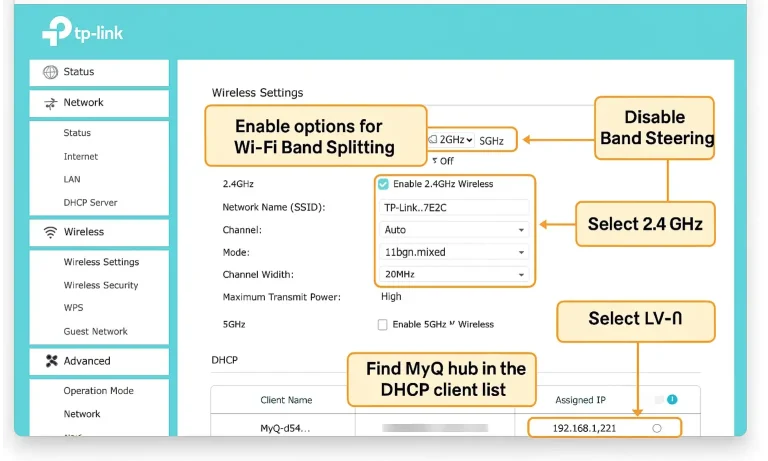
If the basic steps didn’t work, it’s time to look at your router’s settings. Don’t worry—we’ll break down the jargon and show you exactly what to do. The main reason homeowners delay smart garage door technology is often the fear of complex network troubleshooting, but these steps can demystify the process.
The 2.4GHz vs. 5GHz Challenge
- Jargon Buster: Your Wi-Fi router uses radio frequencies to transmit data. 2.4GHz is an older standard that offers longer range but slower speeds. 5GHz is newer, faster, but has a shorter range.
- Why It Matters: MyQ devices use 2.4GHz because the longer range is essential for reaching from your house into the garage. If your router uses “band steering” to automatically push devices to the “best” network (usually 5GHz), it can prevent your MyQ from connecting properly.
The Solution: Create a Dedicated 2.4GHz Network
The most reliable fix is to log into your router’s admin panel and temporarily disable the 5GHz band, or give your 2.4GHz and 5GHz networks different names (SSIDs). For example:
MyHomeWiFi_2.4
MyHomeWiFi_5
This allows you to specifically connect your MyQ device to the MyHomeWiFi_2.4 network, removing any confusion. Once connected, you can usually re-enable the 5GHz band or merge the names again.
Tips for Mesh Wi-Fi Systems
Mesh systems (like Eero, Google Nest, or Orbi) are fantastic for whole-home coverage but can sometimes be tricky for simple smart devices. If you’re on a mesh network, try these steps:
- Bring the Node Closer: During setup, temporarily move the closest mesh node right next to the garage door opener to ensure a strong connection.
- Pause the 5GHz Network: Most mesh system apps have a feature to temporarily pause the 5GHz network for 10-15 minutes, forcing devices to connect to the 2.4GHz band. Use this feature right before you start the MyQ setup process.
When Simple Solutions Fail: Next Steps
If you’ve worked through all these steps and are still stuck, the issue might be more complex. It could be a faulty MyQ device or a very specific router incompatibility. Before you call for support, it’s wise to ensure the core components are working. Sometimes, a connectivity issue can mask a mechanical one. If you suspect you need to repair garage door opener components themselves, it’s best to consult a professional.
When contacting Chamberlain support, having the following information ready will speed up the process:
- The model number of your garage door opener or MyQ hub.
- The model of your Wi-Fi router.
- The color and behavior of the LED light on your device.
FAQ: Your MyQ Connectivity Questions Answered
Why is my MyQ app frozen or not responding?
This is often an issue with the app itself or its connection to the MyQ servers, not your opener. Try force-closing the app and reopening it. If that fails, check for app updates in your phone’s app store.
How do I get my MyQ back online?
Start with the “5-Minute Fixes” mentioned above: check MyQ’s server status, then power cycle your modem, router, and MyQ device. This resolves the majority of “offline” issues.
Can I connect MyQ to a 5GHz Wi-Fi network?
No. Chamberlain MyQ devices are only compatible with the 2.4GHz Wi-Fi band due to its superior range, which is necessary to reliably reach the garage.
My MyQ works on cellular data but not when my phone is on my home Wi-Fi. What’s wrong?
This is a classic sign of a local network issue. It means your MyQ device is successfully connected to the internet, but something on your home network is blocking your phone from communicating with it directly. This can be caused by advanced router settings like “AP Isolation” or certain firewall rules. Check your router’s manual for these settings.
What if my garage door sensors are acting up too?
While unrelated to Wi-Fi, faulty safety sensors can prevent the door from operating, which you might notice through the app. A common question is, “should both garage door sensors be green?”—and yes, typically solid lights on both indicate they are aligned and working correctly.
Taking Your Smart Garage to the Next Level
Troubleshooting can be a hassle, but understanding how your smart devices interact with your home network is an empowering skill. Once you have a stable connection, you can explore even more powerful features. The convenience of being able to open my garage door with my smartphone is just the beginning. You can also look into a garage door geofencing setup that automatically opens the door as you arrive home.
By patiently working through these steps, you can solve most MyQ connectivity problems and get back to enjoying the convenience of your smart garage.
You May Also Like
Chamberlain Garage Door Opener Troubleshooting Guide
A misbehaving Chamberlain garage door opener can feel like a real headache, especially when the door won’t open or close and you need to get going. In reality, many issues come down to simple causes like lost power…
Published Date: Dec 1, 2025
Chamberlain Garage Door Opener Remote: Quick Setup Solutions
A Chamberlain garage door opener remote makes daily access to your garage fast and easy — until it needs reprogramming, stops responding, or no longer connects to your garage door opener. Whether you’re moving into a…
Published Date: Dec 23, 2025
The Impact of Sensor Removal on Garage Door Opener Warranty
It’s a familiar story. You’re rushing out, you hit the button, and the garage door starts to close… only to reverse and open again. The lights on your opener flash, and a quick online search points to the safety…
Published Date: May 13, 2026