





Smart Garage Door Opener Offline: Your Step-by-Step Connectivity Fix
Published: Mar 23, 2026
That sinking feeling is all too familiar. You pull up to your home, tap the app on your phone, and… nothing. The screen flashes “Device Offline” or “Not Responding.” Just like that, the “smart” part of your smart garage door opener has vanished, leaving you with a very “dumb” (and frustrating) problem.
You’re not alone. This is one of the most common hiccups for smart home enthusiasts. The good news? The fix is often surprisingly simple. Before you start searching for receipts or dreading a call to customer support, let’s walk through this together. We’ll start with the easiest fixes and work our way to the trickier network puzzles, explaining why each step works along the way.
Don't Panic: Let's Get You Back Online in 5 Minutes
Research from countless support forums and manufacturer guides shows that the vast majority of connectivity issues are solved with one simple action: a proper reboot. It’s the classic “turn it off and on again” for a reason. This clears temporary glitches in both your opener and your router, allowing them to establish a fresh, clean connection.
Your First, Most Important Step: The Power Cycle
- Unplug the Garage Door Opener: Unplug the main motor unit from the ceiling outlet. Don’t just turn off a switch; physically remove the plug. Wait a full 60 seconds. This allows the internal capacitors to fully discharge, ensuring a true reset of its network components.
- Reboot Your Wi-Fi Router: While the opener is unplugged, do the same for your home’s router and/or modem. Unplug it from the wall, wait 60 seconds, and plug it back in. Give it a few minutes to fully restart—you’ll see the lights blink and eventually become solid.
- Plug the Opener Back In: Once your home Wi-Fi is back up and running, plug your garage door opener back into the ceiling outlet.
Now, give it a minute or two to reconnect. Check your app. For a huge number of users, this simple sequence solves the problem. If you’re back online, fantastic! If not, don’t worry. We’ve just ruled out the easy stuff. Let’s dig into the most common culprits.
The 3 Most Common Culprits (and How to Fix Them)
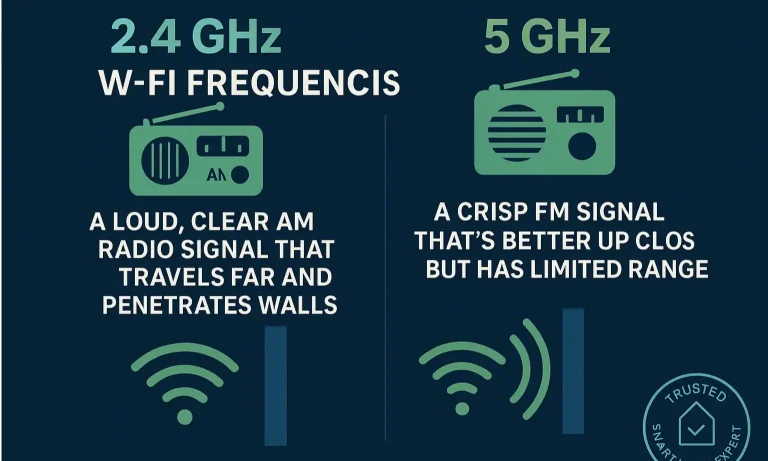
When the quick reboot doesn’t work, the problem usually lies in one of three areas: a bad “handshake” between your opener and your router, a weak signal, or a password mix-up.
1. The Wi-Fi Handshake: Understanding the 2.4 GHz Connection
This is the single biggest “aha moment” for most people. Your smart garage door opener, like most smart home devices, almost certainly requires a 2.4 GHz Wi-Fi band. Modern routers broadcast two bands: 2.4 GHz and 5 GHz. While 5 GHz is faster, 2.4 GHz is the long-distance champion.
Think of it like this:
- 5 GHz is like an FM radio signal: Crystal clear and high-quality, but it struggles to go through walls and has a shorter range. It’s perfect for streaming movies on a laptop in the next room.
- 2.4 GHz is like an AM radio signal: Not as fast, but it’s a powerful signal that can travel much farther and penetrate through obstacles like concrete walls and metal doors—exactly what you have between your router and your garage.
Your opener needs that reliable, wall-punching 2.4 GHz signal to stay connected.
Many modern “smart” routers try to automatically steer devices to the “best” band. Sometimes, they mistakenly push your garage opener to the weaker 5 GHz signal, causing it to drop offline. We’ll cover how to fix this in the advanced section.
2. The Signal Strength Test
Your garage is often at the very edge of your home’s Wi-Fi bubble. A signal that seems strong in your living room might be barely usable where your opener is located.
How to Test It:
Take your smartphone to the garage and stand right underneath your opener motor. Turn off your phone’s cellular data to ensure you’re only using Wi-Fi. How many Wi-Fi bars do you have? Can you load a webpage or watch a short video? If the signal is weak (one bar) or spotty, you’ve likely found your problem. A Wi-Fi extender or a mesh Wi-Fi system could be the long-term solution.
3. The Password Problem
Did you recently change your Wi-Fi network name (SSID) or password? Did you get a new router from your internet provider? If so, your opener is still trying to connect using the old, outdated credentials. It’s like trying to open a new lock with an old key. You’ll need to go through the device’s setup process again to teach it the new password. This often involves putting the device into setup mode and connecting to it via Bluetooth with the manufacturer’s app. If you find yourself needing to reprogram garage door opener settings, it’s a good time to confirm your network details.
Step-by-Step Diagnostic Guide: The LED Decoder Ring
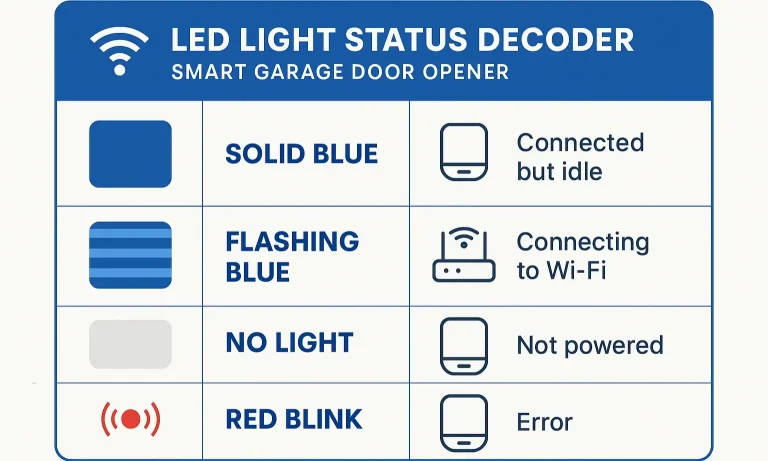
Your garage door opener is trying to tell you what’s wrong. The small LED light on the motor unit is a diagnostic tool. While colors vary by brand (always check your manual!), here is a general guide to what they mean.
- Solid Blue: Often indicates the opener is connected to your Wi-Fi network but is having trouble reaching the manufacturer’s servers. This could be a temporary internet outage or a firewall issue on your router.
- Flashing Blue: The device is in Wi-Fi setup mode, actively trying to connect to a network. If you haven’t intentionally put it in this mode, it means it lost its saved credentials and needs to be reconfigured.
- Solid Green: Usually means the opener has successfully connected to your Wi-Fi network and the manufacturer’s cloud service. This is the ideal state.
- Flashing Green/Blue: The device is attempting to establish a Wi-Fi connection. Be patient; if it fails, it will likely switch to a flashing blue or an error color.
- Solid Red/Orange: This almost always signifies an error. It could mean the password you entered is incorrect, it can’t find the Wi-Fi network, or it failed to get a valid IP address from your router. At this point, a full reset might be needed. If you’re encountering persistent errors, our guide on how to reset garage door opener systems can provide more detailed steps.
Advanced Network Troubleshooting (For Tricky Problems)
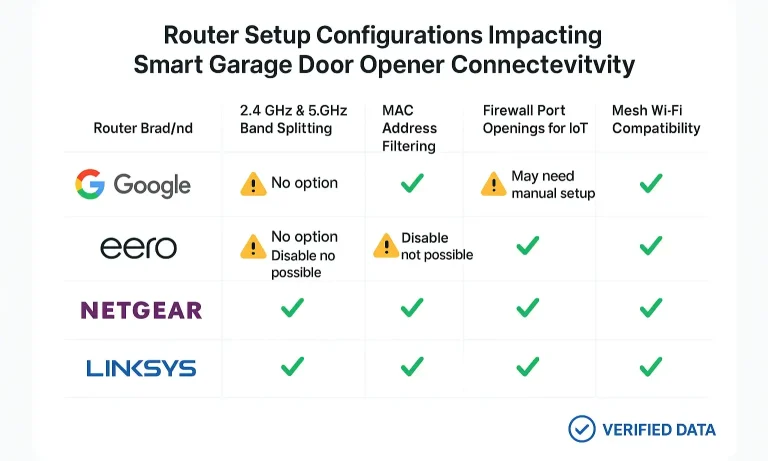
If you’ve tried the basics and the LED light still isn’t solid green, it’s time to look at your router’s settings. This can feel intimidating, but a few small tweaks often solve the most stubborn issues.
Splitting Your Wi-Fi Bands
The most effective way to solve the 2.4 GHz issue is to give that band its own unique name. Instead of one network named “MyHomeWiFi,” you would create two: “MyHomeWiFi-2.4” and “MyHomeWiFi-5.” This forces your opener to connect only to the long-range 2.4 GHz network.
The process varies by router brand (Google Nest, Eero, Netgear, etc.), but generally involves logging into your router’s admin panel or app and disabling a feature called “Band Steering” or “Smart Connect.”
Checking Router Security Settings
Sometimes, advanced security settings on your router can block the opener from connecting.
- MAC Address Filtering: This is a security feature that only allows pre-approved devices to join your network. If it’s enabled, you’ll need to find your opener’s MAC address (usually on a sticker on the device) and add it to the router’s whitelist.
- Firewall/Parental Controls: Aggressive firewall or parental control settings can sometimes block the ports that smart home devices use to communicate with their servers. Try temporarily disabling these to see if the opener connects. If it does, you may need to create a specific exception for the device.
Solving Mesh Wi-Fi Mysteries
Mesh systems (like Eero, Google Nest Wifi, and Orbi) are fantastic for whole-home coverage but can sometimes be tricky for simple smart devices. Because they often combine the 2.4 GHz and 5 GHz bands under a single name, they can suffer from the same “band steering” issues mentioned earlier. Some mesh systems have a “compatibility mode” or an option to temporarily pause the 5 GHz network during device setup, forcing the opener to find and lock onto the 2.4 GHz band.
Your Connectivity Toolkit & Next Steps
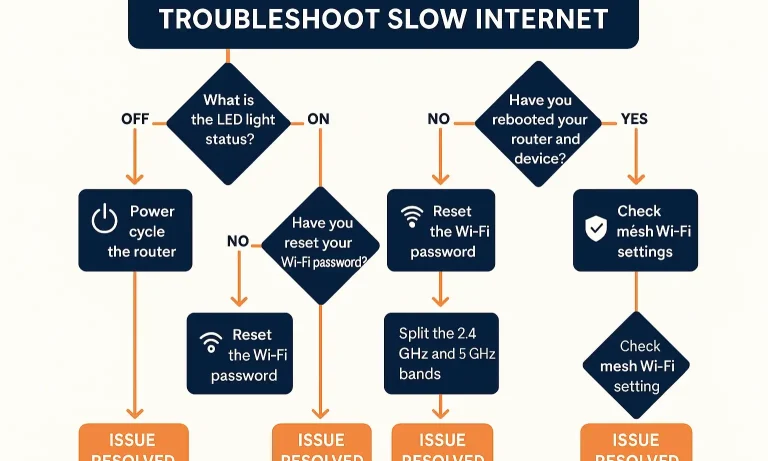
Feeling overwhelmed? Don’t be. Use this flowchart to trace your specific problem to its most likely solution. This systematic approach to garage door opener troubleshooting can save you time and frustration.
When to Call for Help
You’ve done the power cycle, checked your signal, confirmed the password, and even peeked at your router settings. If your opener still refuses to connect, it might be time to consider other factors. Sometimes, the issue isn’t the network at all, but the device itself. The internal Wi-Fi chip could have failed, or there might be a more complex hardware problem.
If you’ve exhausted these steps, don’t hesitate to reach out to a professional. A qualified technician can quickly diagnose whether the issue is with the network, the opener’s configuration, or the hardware itself, saving you from further headaches.
Frequently Asked Questions (FAQ)
Why does my smart garage opener keep going offline?
The most common reasons are a weak Wi-Fi signal in the garage, router settings that steer it to the wrong (5 GHz) band, or temporary interference from other devices. Start by checking your signal strength.
Do I need to buy a new router?
Not usually. Most connectivity problems can be solved by adjusting the settings on your current router, like splitting the 2.4 GHz and 5 GHz bands. A Wi-Fi extender is often a cheaper and easier first step if signal strength is the core issue.
What is the difference between Wi-Fi, Bluetooth, Z-Wave, and Zigbee for garage openers?
Wi-Fi connects directly to your home router, allowing control from anywhere in the world. Bluetooth offers direct, short-range control from your phone but doesn’t connect to the internet. Z-Wave and Zigbee are low-power mesh networks that require a separate smart home hub (like SmartThings or Hubitat) to connect to the internet. This guide focuses on Wi-Fi, which is the most common technology for standalone smart openers. Properly automating my garage door with smart technology often means choosing the right protocol for your setup.
Will a factory reset fix my connection issues?
AVOID THIS unless it’s your absolute last resort. A factory reset will erase all your settings, including connections to remotes, keypads, and vehicle HomeLink systems. You will have to re-program everything from scratch. Always exhaust all network troubleshooting steps first.
Can I install a smart garage door opener myself?
Many homeowners can. Modern smart openers and add-on controllers are designed for DIY installation. However, it involves working with electrical wiring and mechanical components. If you’re not comfortable, a professional can ensure a safe and correct smart garage door opener installation.
You May Also Like
Optimizing Wi-Fi Connectivity for Smart Garage Door Openers
You tap the app to close your garage door from the office, but it spins endlessly. You pull into the driveway after a long day, ready for the magic of your garage opening automatically, but nothing happens. The…
Published Date: Mar 20, 2026
The Role of Garage Doors in Home Automation Systems
Garage doors are no longer just car entrances in the smart home age. They’ve become an integral part of smart home systems, security, and convenience. The common garage door has undergone a huge transformation as…
Published Date: Nov 12, 2024
The Ultimate Guide to Automated Garage Entry with Geofencing
Imagine this: You're driving home after a long day. As you turn onto your street, your garage door magically begins to open, welcoming you home without you ever touching a button. You pull straight into the garage,…
Published Date: Feb 4, 2026