





Clearing Smart Garage Door Opener Wi-Fi & App Integrations Before Sale
Published: Jun 11, 2026
Selling your home is a whirlwind of packing, paperwork, and planning. In the chaos, it’s easy to overlook a critical digital detail: your smart garage door opener. You might remember to hand over the physical remotes, but what about the invisible keys? Failing to properly transfer ownership of a Wi-Fi-enabled opener can leave the new owners locked out of their system and, more alarmingly, leave you with lingering access to their home. This isn’t just about convenience; it’s a crucial security step for both parties.
The "Aha Moment": Understanding the Cloud Link
Here’s the single most important thing to understand: your smart garage door opener exists in two places at once. There’s the physical hardware mounted in your garage, and then there’s its digital identity linked to your account in the manufacturer’s cloud.
This is where nearly everyone gets tripped up. Performing a factory reset on the opener itself only erases its local memory, like its connection to your Wi-Fi network. It does not break the connection between the device’s unique serial number and your online account.
Think of it like this: Wiping a smartphone erases the data, but it doesn’t remove the Apple ID or Google account lock. The phone is clean, but it’s still digitally tied to the original owner. The same principle applies to your wifi garage door opener. To transfer it correctly, you must first release it from your account in the cloud before the new owner can claim it.
Part 1: For the Seller - Your Pre-Sale Security Checklist
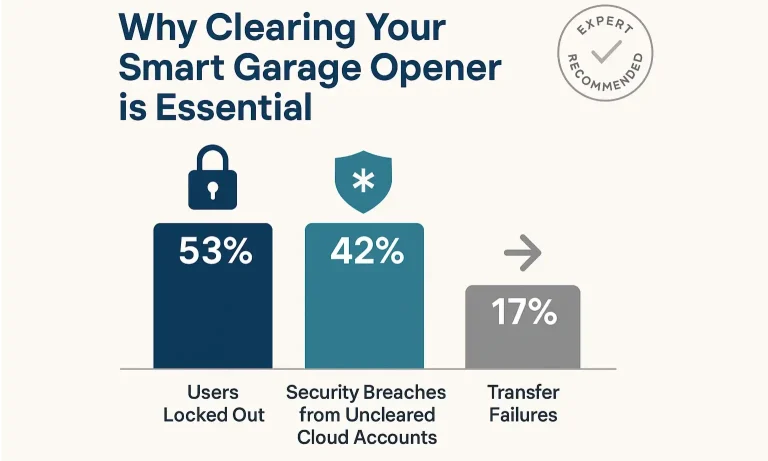
As the seller, your goal is to perform a clean and secure digital handover. This ensures the new owners have a seamless experience and protects your privacy by severing all connections to the device. Follow these three simple steps.
Step 1: Unlink the Device from Your Account (The Cloud)
This is the most critical step. You must go into the manufacturer’s app on your phone and remove the garage door opener from your account. This releases the serial number, making it available for the new owner to register.
For MyQ (Chamberlain, LiftMaster, Craftsman):
- Open the MyQ app.
- Tap the Initials or Menu icon.
- Go to Device Management.
- Select the garage door opener you want to remove.
- Tap the Trash Can icon or Delete Device option and confirm.
- Open the Aladdin Connect app.
- Tap the specific door you wish to remove.
- Tap the Settings gear icon.
- Select Delete Door at the bottom and confirm.
For Genie Aladdin Connect:
For Other Brands (Ryobi, Sommer, etc.): The process is similar. Look for a “Device Management,” “Settings,” or “Remove Device” section within the app.
Warning: Simply deleting the app from your phone does NOT unlink your account. The connection remains active in the cloud, and the new owner will be blocked. You must follow the steps above to formally remove the device.
Step 2: Perform a Factory Reset (The Hardware)
After unlinking the device from the cloud, it’s best practice to perform a full factory reset. This clears any lingering Wi-Fi settings and personal data from the physical unit. While the exact steps vary, it almost always involves pressing and holding a specific “Learn” or “Reset” button on the motor unit itself. For a detailed walkthrough on this process, see our guide on how to reset garage door opener units.
Step 3: Leave Physical Remotes and Manuals
Leave any physical remotes, keypads, and the original owner’s manual for the new homeowners. This gives them everything they need for a fresh start.
Part 2: For the New Homeowner - Your Troubleshooting Guide
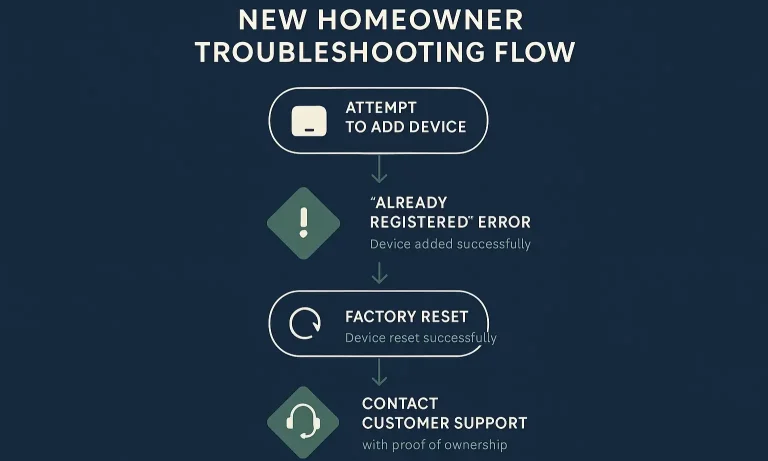
Welcome to your new home! If you’re trying to set up your smart garage door opener and hitting a wall, you’re not alone. The most common problem is that the device is still linked to the previous owner’s account. Here’s how to take control.
Step 1: Attempt to Add the Device
First, download the appropriate app for your opener’s brand (MyQ, Aladdin Connect, etc.). Create your own account and follow the standard instructions for a new smart garage door opener installation. If the previous owner followed the steps above, it should connect without issue.
Step 2: If It Fails, Do a Factory Reset
If you get an error message like “Device is registered to another account,” the opener is still linked to the previous owner. The first thing to try is a factory reset. This ensures the hardware is clear, even if the cloud link remains. See the visual guide below to find the reset button on your model.
Step 3: If It Still Fails, Contact Customer Support
If a factory reset doesn’t solve the problem, the “Cloud Link” is still active. At this point, you cannot resolve it on your own. You will need to contact the manufacturer’s customer support (e.g., Chamberlain Group for MyQ, Genie for Aladdin Connect).
They will ask you for “proof of ownership” to manually unlink the device for you. This usually includes:
- A photo of the garage door opener’s serial number.
- A utility bill or a section of your closing documents showing your name and the property address.
Once they verify your ownership, they can break the old cloud link, freeing the device for you to register to your account.
Mastery: The Visual Guide to Factory Resets
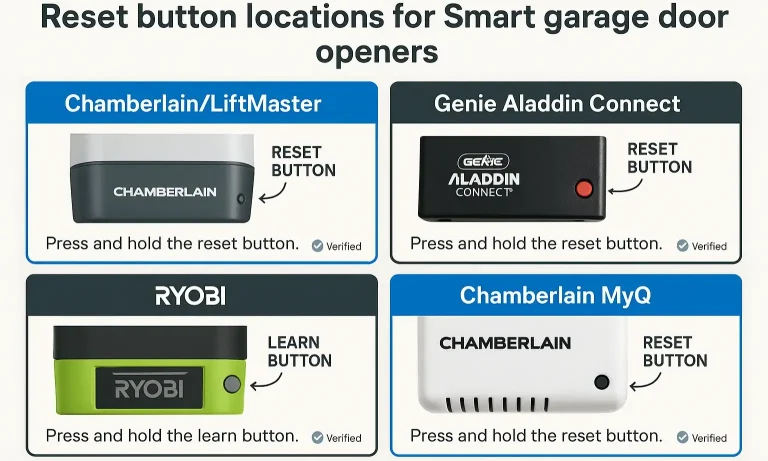
Finding the reset button can be tricky. It’s often a small, square button near the antenna wire or the larger “Learn” buttons used for programming remotes. You typically need to press and hold it for 6-10 seconds until an LED light blinks or you hear a beep.
Mastery: The Visual Guide to Factory Resets Section
- Chamberlain/LiftMaster/MyQ: Look for a yellow, purple, red, or green square “Learn” button. Pressing and holding this button is the most common way to reset the unit.
- Genie: There is often a pair of buttons labeled “Program Set.” Pressing and holding one or both of these buttons will typically initiate a reset.
- Ryobi: Look for a dedicated “Reset” button on the unit, sometimes located under a protective cover.
Advanced Troubleshooting & FAQs
What do I do if the previous owner is unreachable?
This is exactly why manufacturers have a support process. If you can’t contact the seller, your only option is to go to Step 3 above: call customer support and provide them with proof of ownership. They are equipped to handle this common scenario.
What is the difference between a Wi-Fi reset and a factory reset?
A Wi-Fi reset (often done by pressing the black rectangular button on MyQ units three times) only clears the network settings so you can connect to a new router. It does not unlink the owner’s account or clear remotes. A full factory reset (holding the “Learn” button) is more comprehensive. If you’re experiencing issues like a MyQ offline after power outage, a simple Wi-Fi reset might be all you need, but for ownership transfer, the full factory reset is best.
Does performing a reset affect my physical remotes?
Yes, a full factory reset will typically erase all programmed devices, including car remotes and external keypads. After taking ownership, you will need to re-program these devices.
I’m selling, can I just disconnect the opener from power?
No. Disconnecting the power does not affect the cloud link. The serial number will remain tied to your account, and the new owner will be blocked as soon as they restore power and try to connect. If you wish to fully deactivate the unit, you’ll need to know how to deactivate garage door opener features digitally first. For more complex issues, our general garage door opener troubleshooting guide can be a great resource.
By taking these few simple steps, sellers can ensure a secure and considerate home sale, and buyers can enjoy the convenience of their new smart home without any frustrating digital roadblocks.
You May Also Like
Garage Door Opener Settings Won’t Erase or Reset Properly
You’ve followed the manual. You’ve held down the "learn" button for what feels like an eternity. You may have even unplugged the unit, hoping for a magical reboot. Yet, here you are. The remote still doesn't work,…
Published Date: Jun 9, 2026
When to Perform a Full Garage Door Opener Memory Erase
You wouldn't hand out keys to your front door and forget who has one. Yet, many of us do exactly that with the largest door to our home: the garage. Over the years, countless digital "keys"—remotes, keypad codes, and…
Published Date: Jun 8, 2026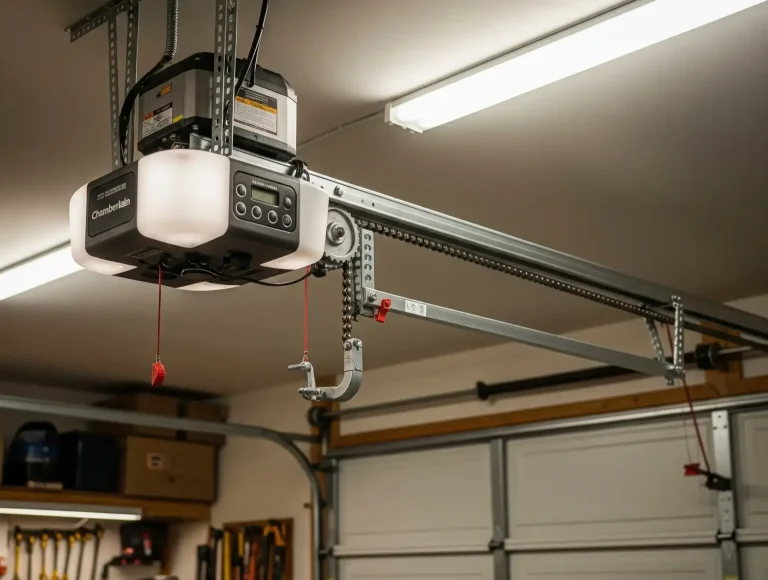
How to Erase Garage Door Opener Settings: Fast Tips for a Fresh Start
Whether you’re moving, upgrading your system, or tightening up security, there may come a time when you need to erase garage door opener settings. Clearing out old remotes or keypads is a smart way to make sure no…
Published Date: Aug 7, 2025